
How to use Name match
From a list of names to a spreadsheet aligned to FlorItaly, in five steps.
Load the names
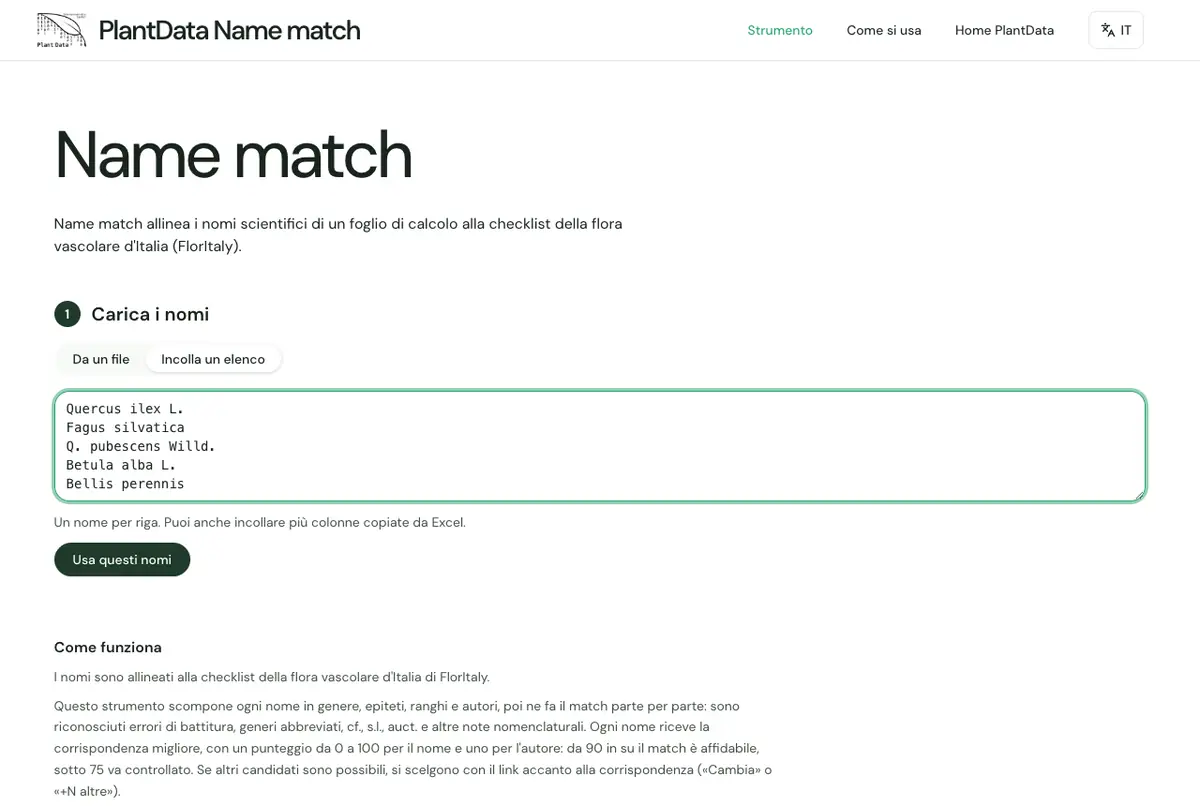
Drop a spreadsheet (Excel .xlsx or .xls, LibreOffice .ods, CSV or TSV) or paste a list, one name per line. The file stays on your device: only the distinct names are sent to the server.
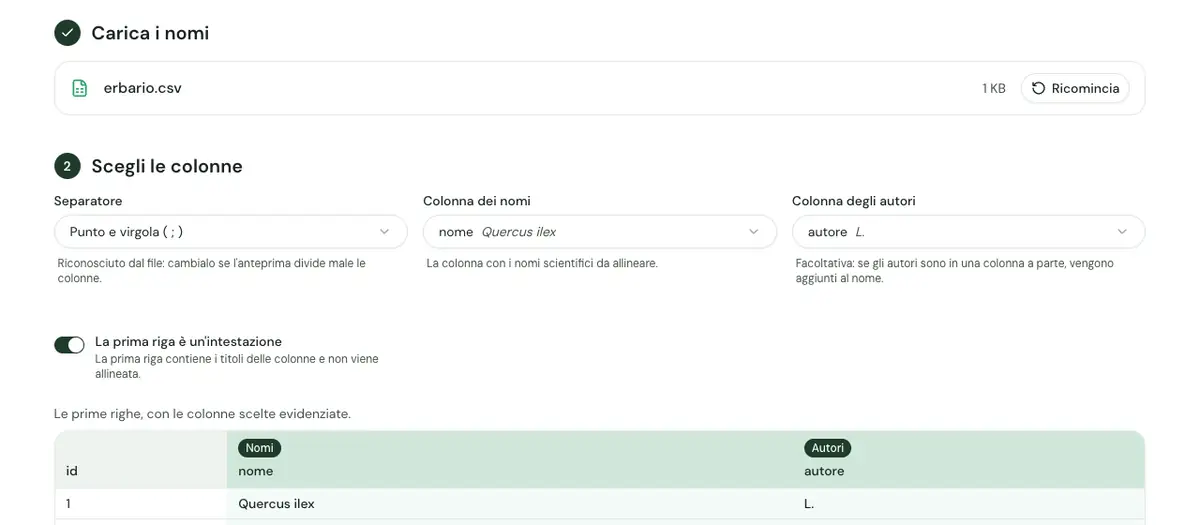
Choose the columns
Name match suggests the column of names and, if there is one, the column of authors; the preview highlights the chosen columns. For a CSV you can change the separator, and you can say whether the first row is a header. A pasted list of names alone skips this step.
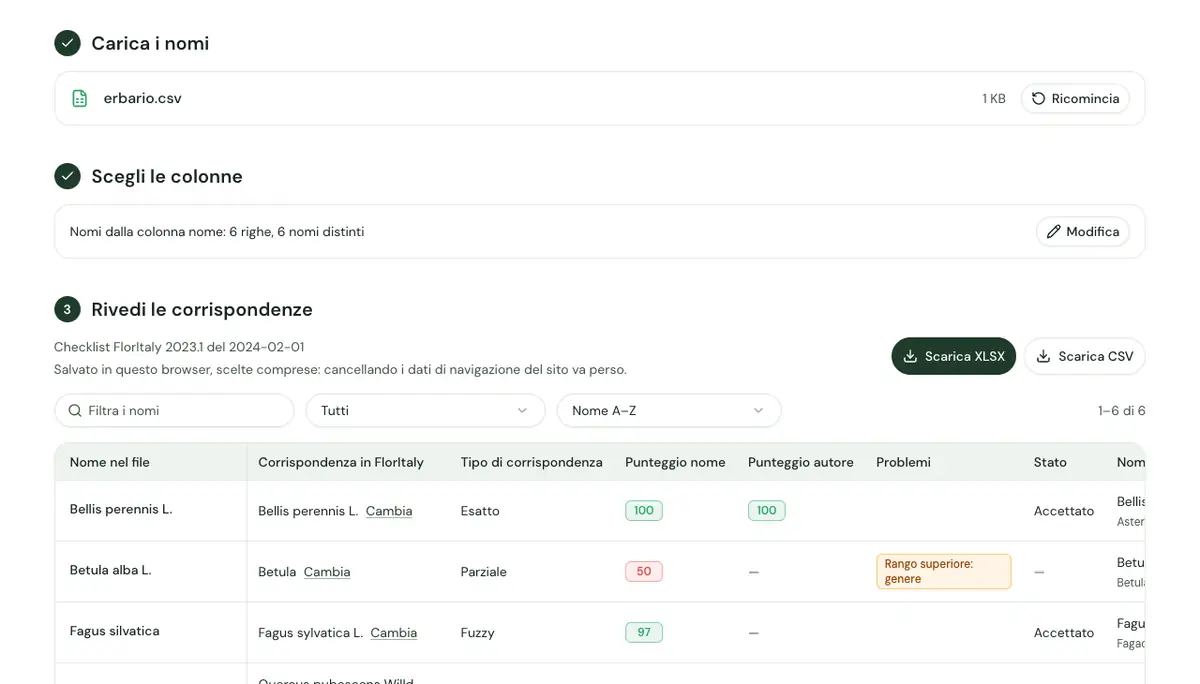
Review the matches
Each name gets its best match in FlorItaly, with its kind (exact, fuzzy, partial), a score from 0 to 100 for the name and one for the author, its status (accepted, synonym, misapplied) and the accepted name. From 90 up the match is reliable; below 75 it needs checking, and the tags under “Issues” say what to look at. Filter, search and sort the list to find the cases to review.
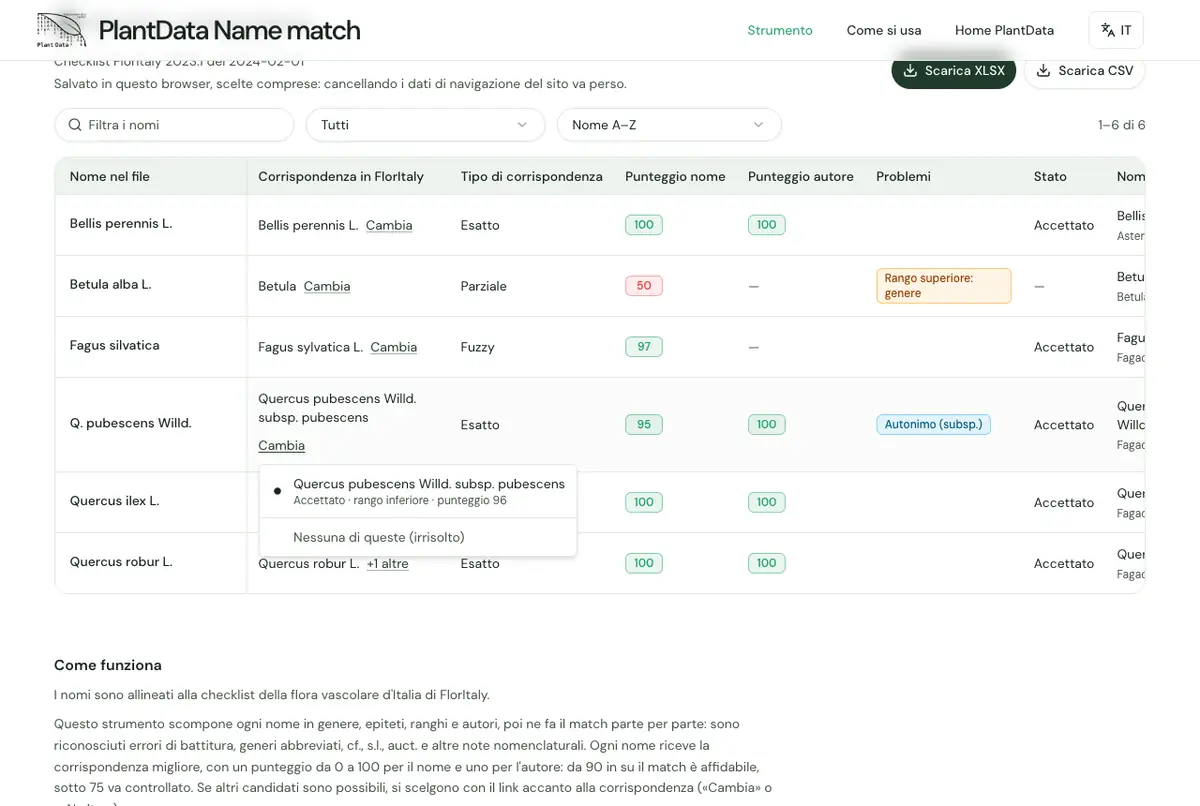
Change a match
“…”, or “+N more” when there are other candidates, opens the list beside the match: pick another one, or “None of these” to leave the name unresolved.
Download the result
“Download XLSX” or “Download CSV”: one row for each row of your file, with the name as it was and the match's columns (FlorItaly name, kind, scores, issues, status, accepted name, family, FlorItaly code and link). The work, choices included, stays saved in this browser: pick it up again from “Saved work”.