From choosing a herbarium to a specimen's page, in seven steps.
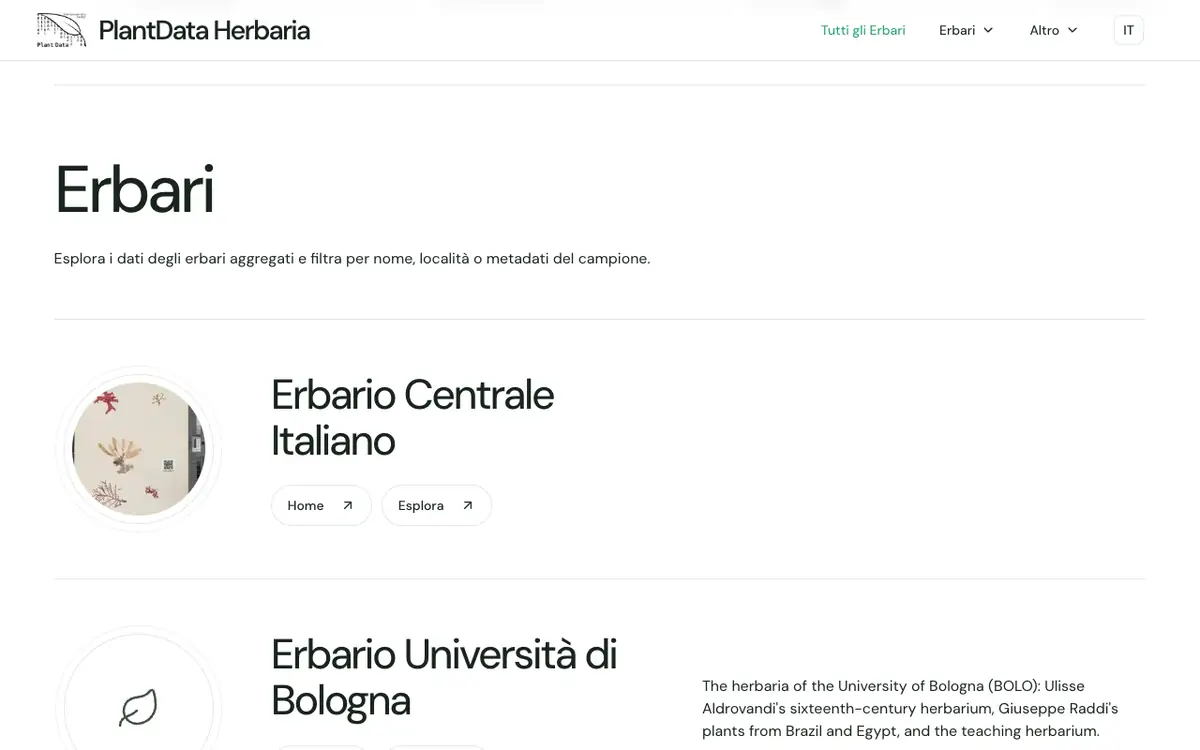
The Herbaria page lists the published herbaria. “Home” opens the herbarium's page, with its history and collections; “Explore” opens the search of its specimens. To search every herbarium at once, use “General search” in the Herbaria menu.
In the filters panel, type a name in “Scientific name”, “Family” or “Genus” and pick a suggestion: the number beside it is how many specimens carry it. A genus picked in “Genus” takes all its specimens, species included. You can add more names.
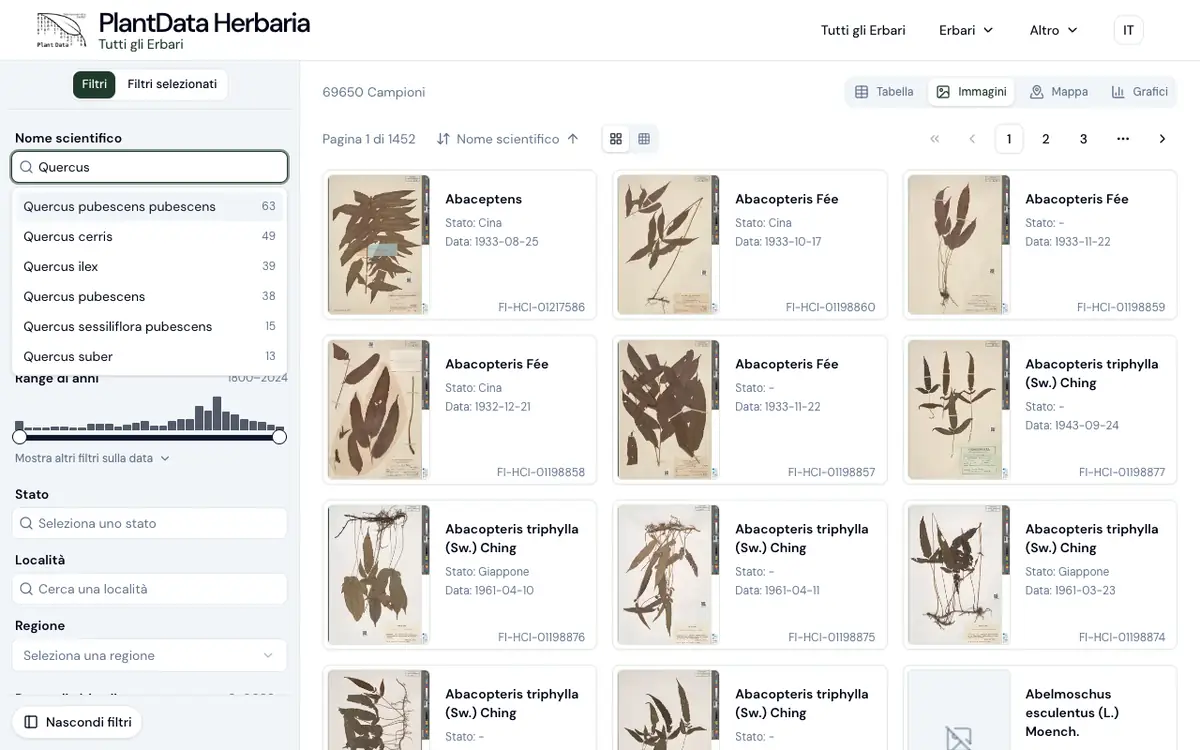
Choose years and altitude by dragging the handles above the histogram, which shows how many specimens there are. The other filters are Country, Locality, Region, Herbarium, Collected by and Barcode, plus “Show only georeferenced records”. “Selected filters”, at the top of the panel, lists the active ones: remove them one by one or all at once.
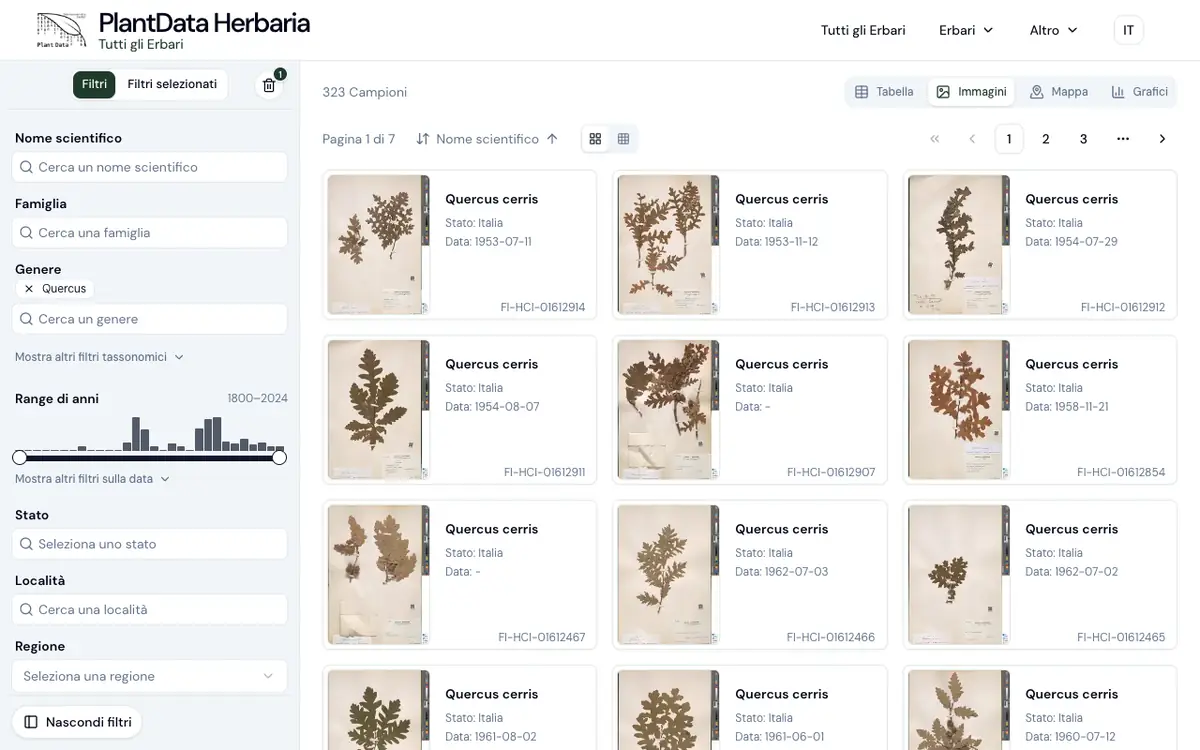
Top right: Table, Images, Map and Graphs show the same specimens. The search is in the page's address: bookmark it or send it to someone as it is.
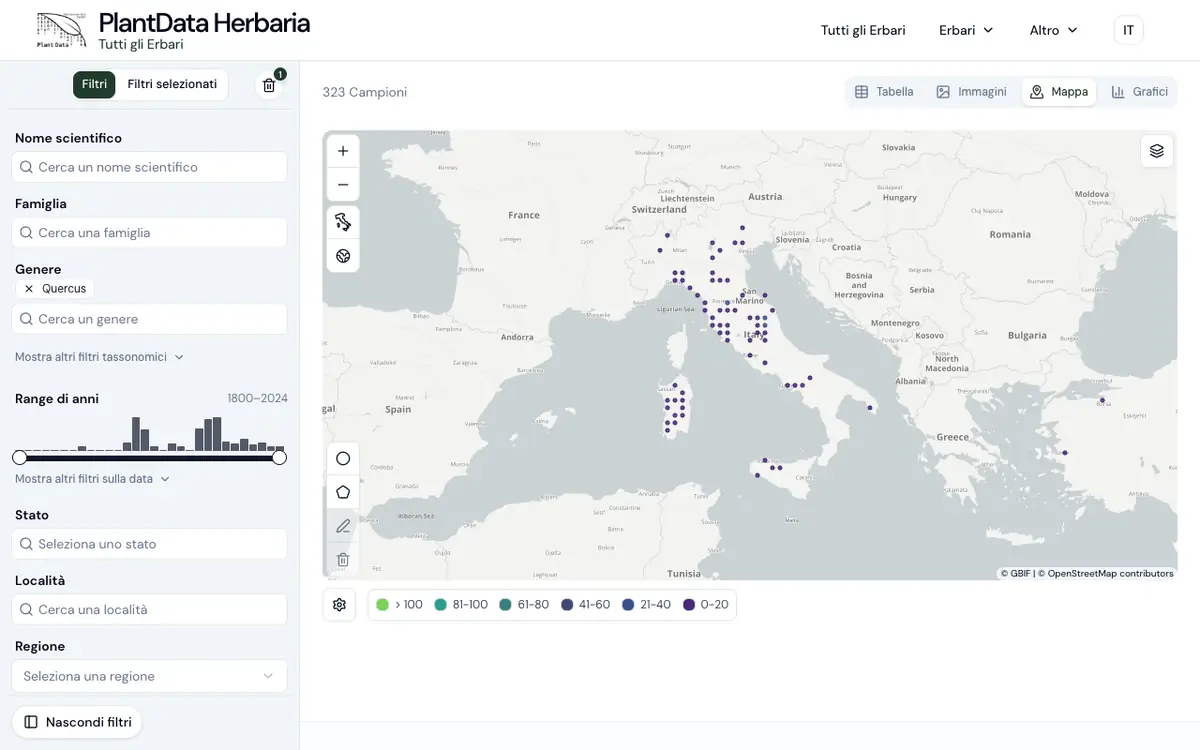
The map shows the georeferenced specimens, grouped into cells coloured by density. With the drawing tools on the left, draw a circle or a polygon: the search is limited to that area. A click on a dot lists the specimens it holds.
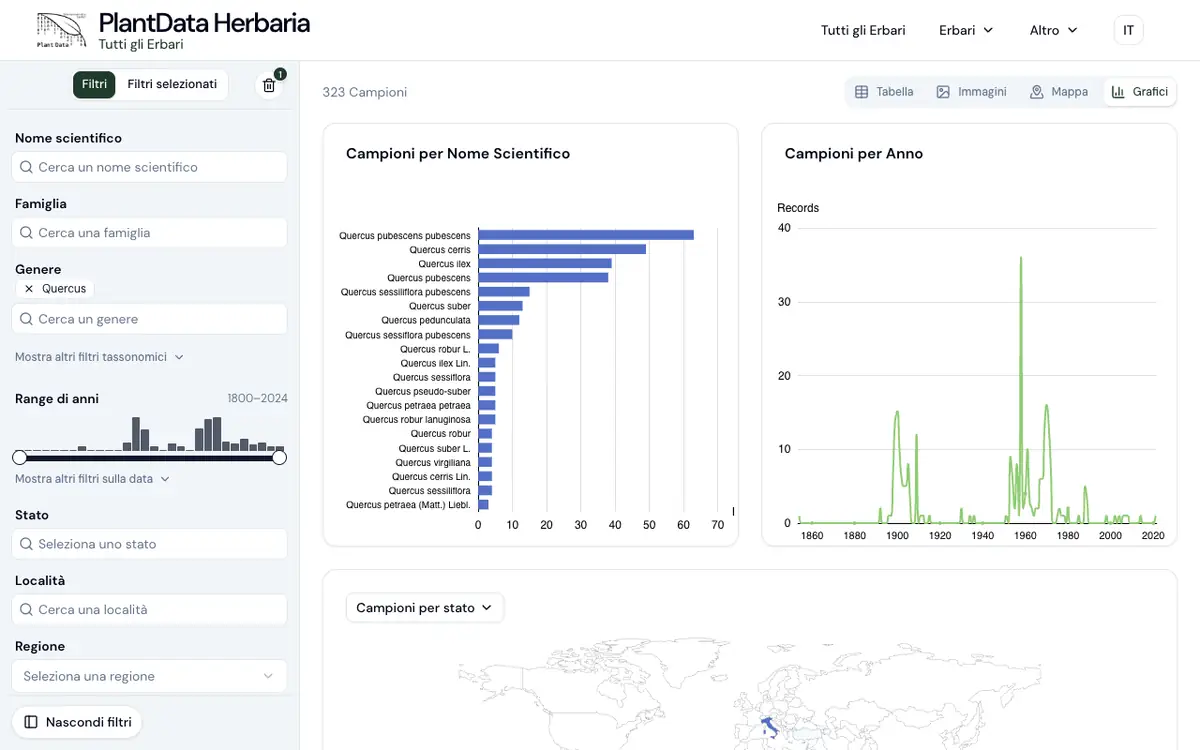
The specimens found by year, month, altitude and name, and a map of the Italian regions. They follow the filters, changing with every search.
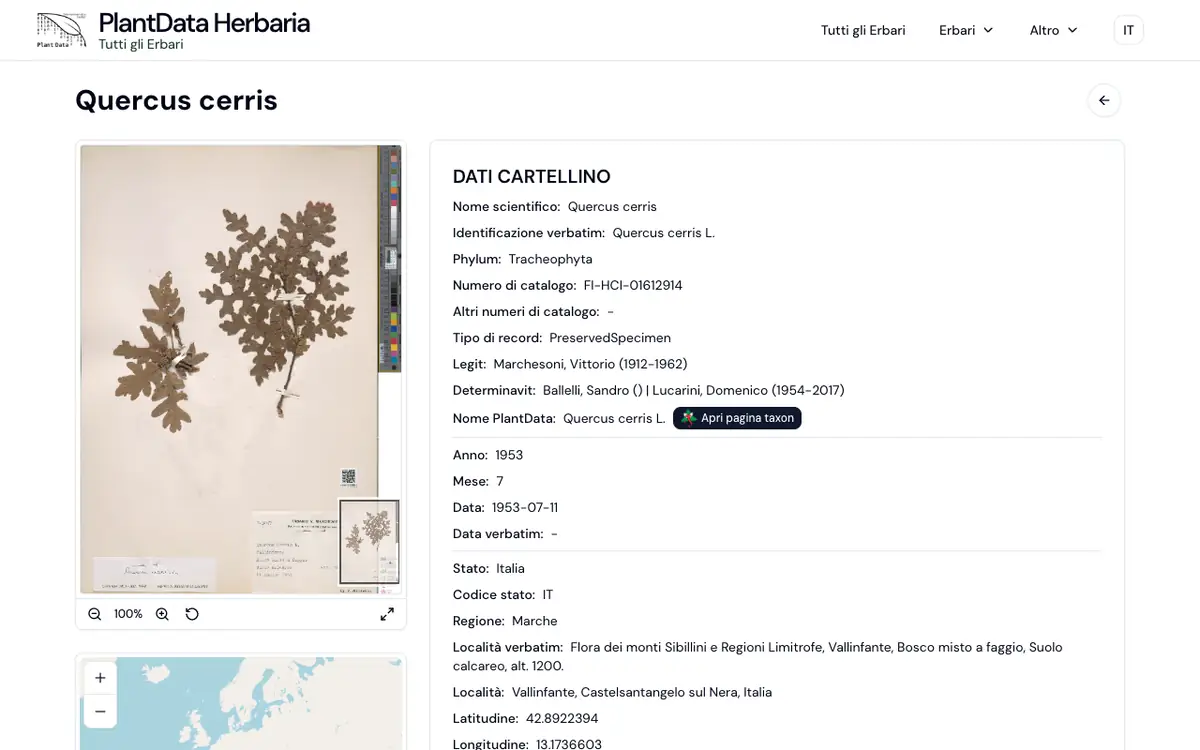
A click on a specimen opens its page: the image of the sheet, which zooms with the wheel or the buttons and opens full screen; the label data; a map of where it was collected; and a link to the taxon's FlorItaly page, when the name is aligned. “Show Darwin Core terms” shows the fields' standard names.